
With custom branding in TROOP, ensure that your company's meeting invites, meetings briefs, and RSVP pages look and feel like they come directly from your company.
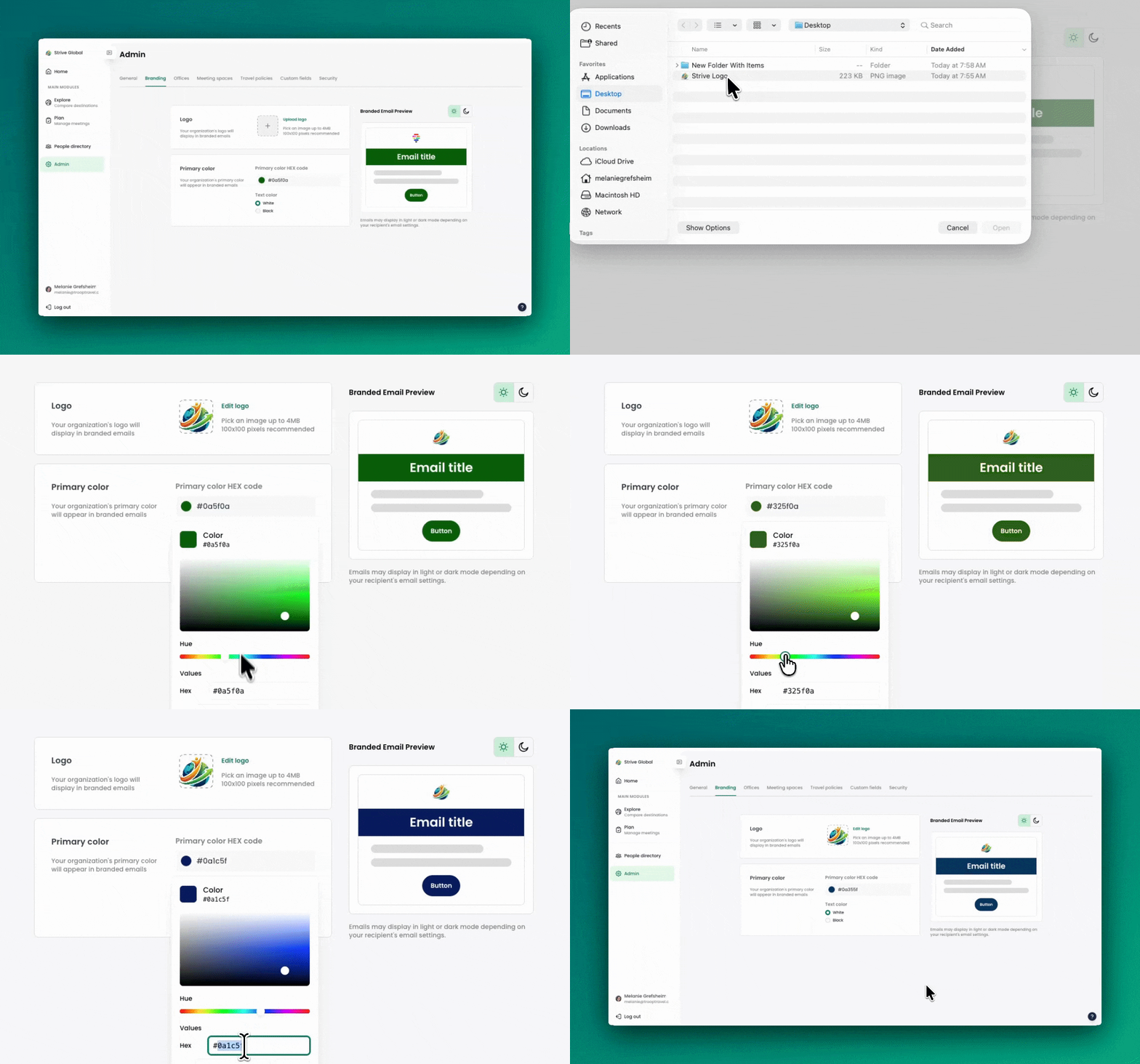
-
Logo Integration: Upload your company logo to appear at the top of communications you send from TROOP.
-
Color Matching: Apply your primary brand color to buttons and accents to match your style guide.
-
Unified RSVP Experience: The branding extends from the initial email to the web-based RSVP landing page.
-
Direct Replies: When an attendee hits "Reply," the email goes directly to the meeting planner, not a generic support inbox.
How to Set Up Custom Branding
-
Navigate to your Organization Settings.
-
The Branding section is the second tab at the top of the navigation bar.
- Customize as needed, including company logo and colors.
-
Upload your Company Logo (recommended in high-resolution PNG or SVG).
-
Select your Primary Brand Color using a hex code (e.g., #003366).
Once saved, these updates will apply to any new communications sent from the platform, regardless of whether the meeting was created before or after the branding change.
Only 'Admin' have the permissions required to update company-wide branding settings.