
Explore multiple cities and run different scenarios to identify the best location before planning your meeting.
Follow the steps below to create a new scenario. Each step will then be explained in more detail.
Step 1: Meeting Details
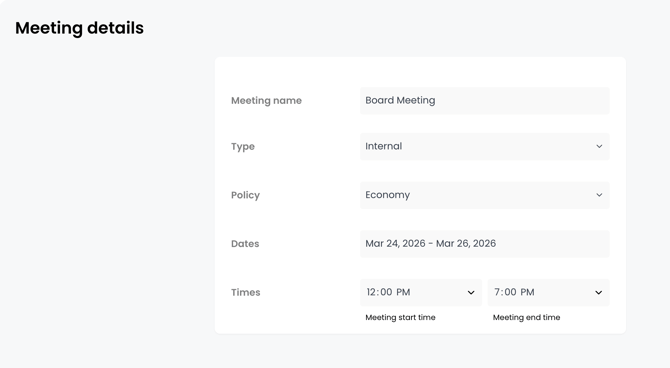
Input the meeting name, type, policy, dates, and times.
📍The meeting start and end time is meant to help you find the best flights for your attendees, ensuring they arrive on time. The TROOP platform will search for flights with a three-hour buffer by default, giving attendees enough time for commuting and any unexpected delays.
💡 Replicate the scenario and adjust the dates to determine the optimal date for a meeting. By comparing the results of each variation, you can gain insights into how costs may fluctuate depending on the time of the meeting, which can influence the final destination choice.
💡 Internal Meeting: A meeting where all attendees are from your organization or company.
External Meeting: A meeting that includes attendees from different organizations or companies.
🚨 Only one policy can be applied per meeting.
Step 2: Attendees
Add attendees by email, by team, or by origin.
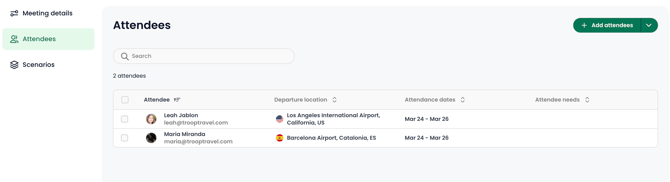
Add attendee profiles to your meeting by email in bulk
Follow these steps to add multiple attendee profiles to the meeting:
💡 If copying and pasting, make sure the emails are properly spaced or with commas separating each address. You can also copy and paste from a spreadsheet column.
💡 Click on an attendee's name to open the side panel and edit their profile information.
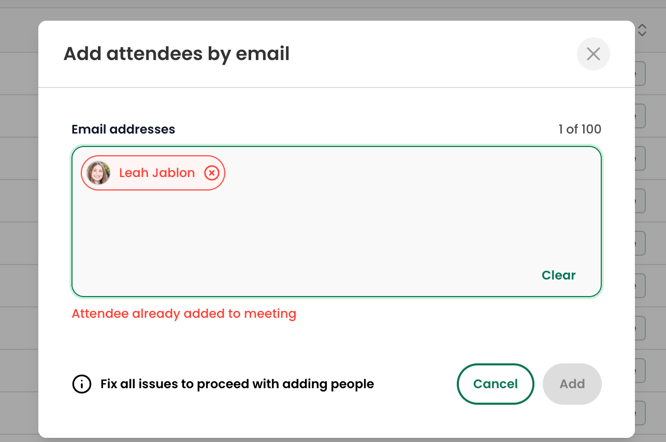
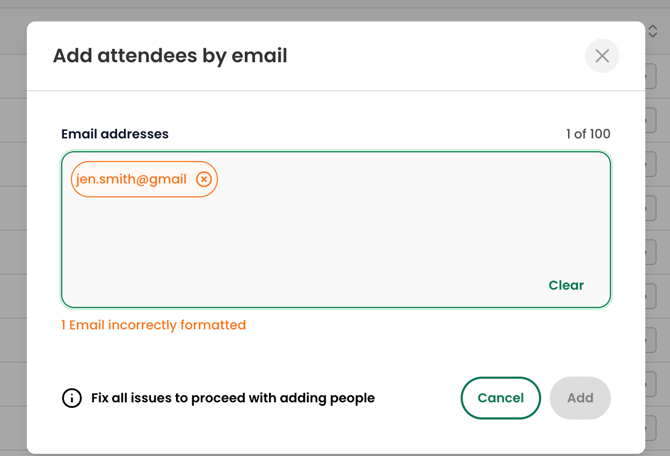
If an attendee's email is incorrectly formatted or a duplicate, a warning will appear prompting you to fix it before adding them to the roster.
Add attendee profiles to your meeting using Teams
Follow these steps to add attendees to your meeting using Teams:
💡 Add as many Teams as you want to your meeting.
Add anonymous attendees to your meeting by origin (departure location)
💡 You can select an anonymous attendee and input an email to establish a profile for them.
Step 3: Scenarios
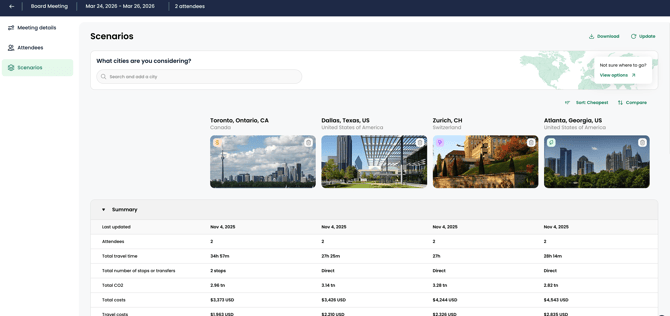
Follow these steps to compare multiple cities:
1. Click the "Search and add a city" field. Then, type the name of the city, airport, or office you're looking for, and click to select the correct option.
2. To add and compare more destinations, repeat the first step.
3. To get TROOP city recommendations, click "View options" to open the Destination options side panel.
4. You can scroll through the recommended list and click "Add" on any destinations you want to compare. Then click "back to get back to the Scenarios compare page.
💡 Replicate the scenario and adjust the dates to determine the optimal date for a meeting. By comparing the results of each variation, you can gain insights into how costs may fluctuate depending on the time of the meeting, which can influence the final destination choice.