
Custom Fields let you add the information your organization needs directly inside TROOP.
A custom field is a field you create to capture details that TROOP does not track by default, such as cost center, department, dietary preferences, or T-shirt size. Instead of managing those details in external spreadsheets, you can store them within TROOP.
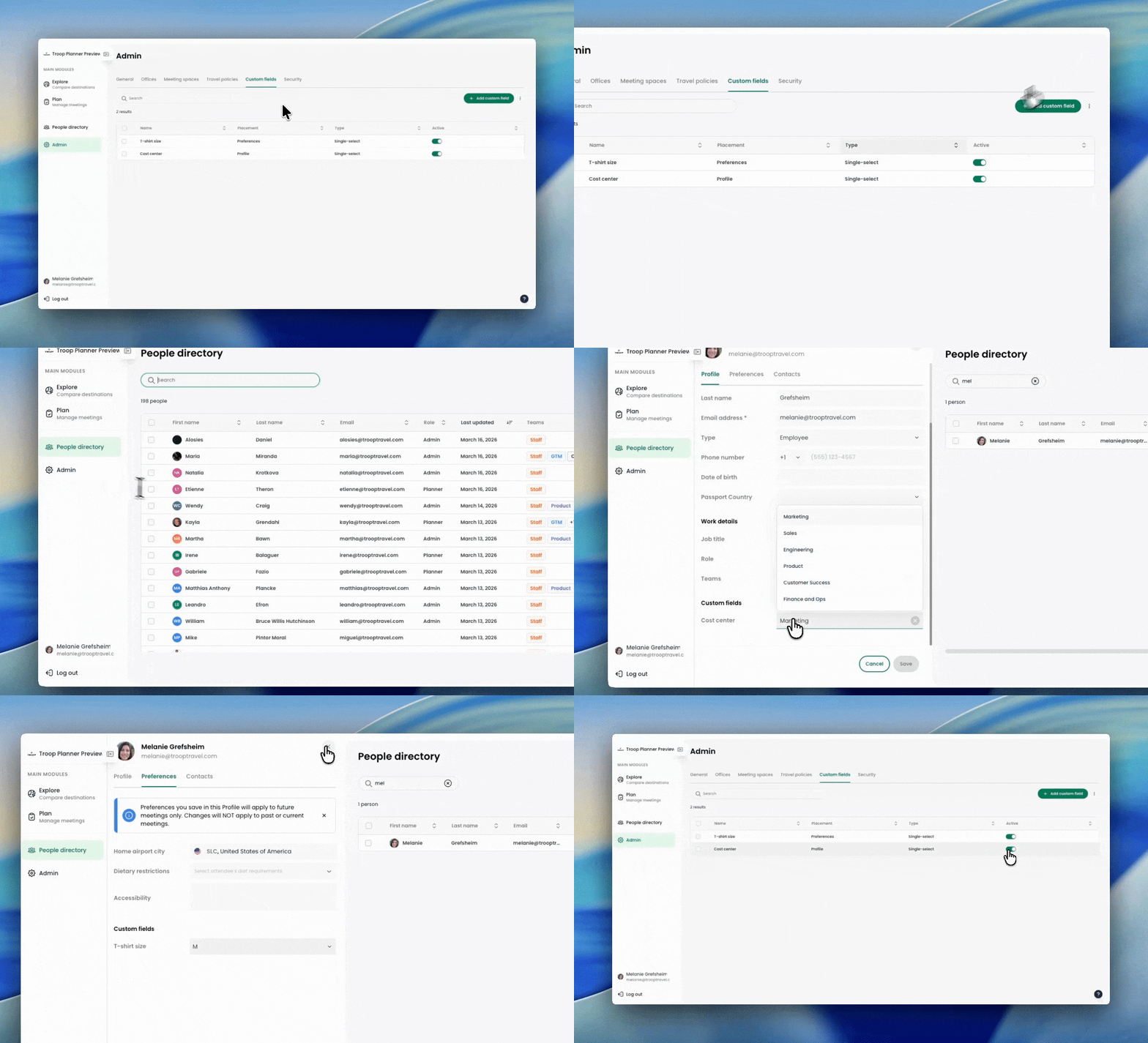
Two ways to organize your data
TROOP separates information based on how it is used and how often it changes.
-
Custom Profile Fields: These are for long-term details tied to a person’s work identity. This information lives in the People Directory and automatically carries across every meeting they attend.
-
Examples: Employee ID, manager, department, or cost center.
-
-
Custom Preference Fields: These are for reusable details but may need to be updated depending on the specific meeting or travel needs. These fields appear in both the People Directory and the Preferences section of a meeting.
-
Examples: Dietary notes, seat preferences, or T-shirt size.
-
📍Profile Fields are visible in the People Directory and the attendee profile panel. Preference Fields are visible in both the Directory and the specific meeting's "Preferences" section.
Why use them?
-
Data that stays current: Attendee information is reusable across meetings, so you don't have to ask for the same details twice.
-
Less manual tracking: Centralizing data in TROOP means fewer external files to manage.
-
Better organization: Admins can keep field management consistent across the entire platform.
How to set it up
📍Only Admins can create, edit, or delete custom fields that are shared across all planners. Individual planners can also create their own custom fields, but those fields are only visible to that planner.
Follow these steps to get started:
-
Go to Admin: Locate the Custom Fields section on the top right of the navigation bar.
-
Name & choose your type: Name your custom field and decide if your new field should be a Profile Field (identity-based) or a Preference Field (meeting-based).
-
Select the type of question: Choose between short text, number, single-text, or multi-text.
-
Activate: Save your changes. Active fields will now appear in the People Directory and within the attendee profile panels during meetings.
🚨 If you delete a field, it is gone forever, including all the data stored inside it. If you want to keep the data then you should hide the field by choosing "Deactivate". This preserves the values so you can reactivate them later.