
As an admin, you have the power to easily manage your users from the People Directory, ensuring everyone has the right access and support they need to thrive. Stay in the driver’s seat as your team grows and changes, and make sure everyone is set up for success from day one!
Invite new users to your TROOP account
Before inviting a user, make sure they have a profile and that you've selected a user role for them. Follow the steps in this article first to create their profile and get them set up.
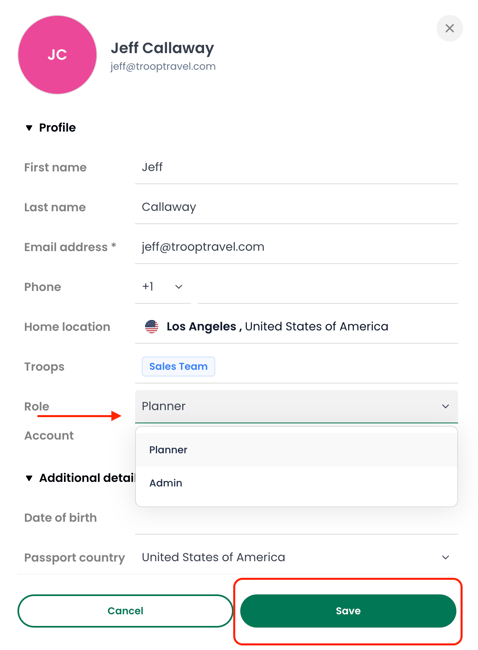
Once their profile is created and a user role is selected, follow these steps to invite them to TROOP:
The new user will receive an email invite to join your organization.
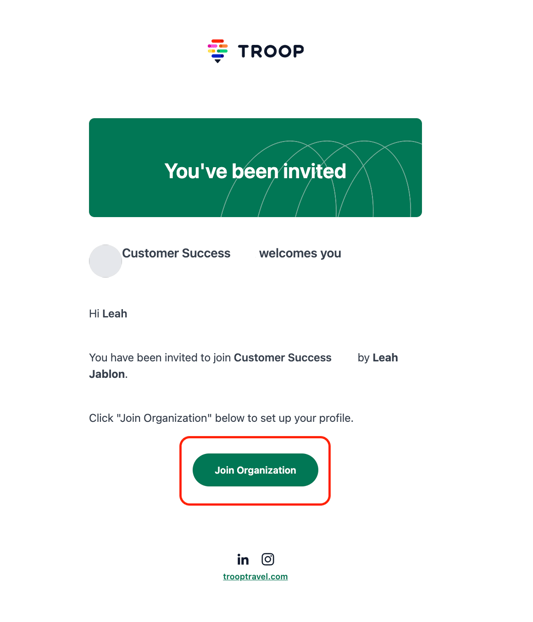
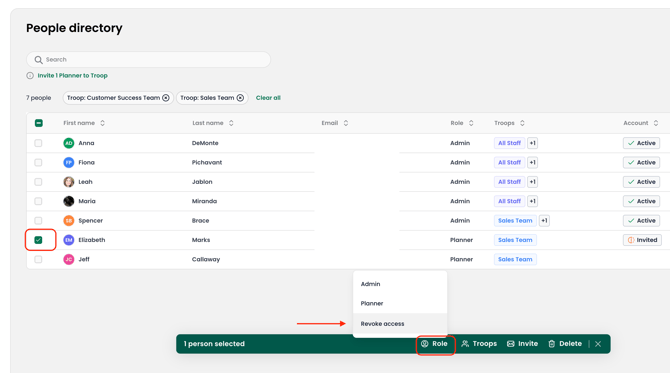
💡 If you accidentally invited someone to be a user, you have the option to revoke their access.
💡 The Admin role has unrestricted access to the platform
Planner Role Permissions
✅ Allowed Actions:
- Create and share meetings
- Access and manage their own meetings or those shared with them
- Send RSVPs
- View and edit budget, schedule, and agenda
- Access the People Directory
- Create Teams
- Add individual profiles
- Bulk upload profiles
🚫 Restricted Actions:
- Cannot add /edit roles or users
- Cannot invite new users
- Cannot delete profiles or users
- Cannot access settings
- No access to travel policies, offices, security settings, etc.
Edit user roles
Follow these steps to edit a user's permission role:
Revoke user access
Follow these steps to revoke a user's access:
📍This action will revoke their permissions and access to the organization, but they will still be listed in the People Directory and can be added as an attendee to meetings.