
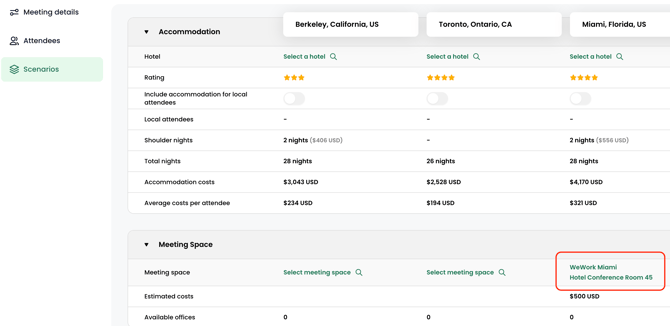
Select or add your meeting spaces directly to your scenario in Explore — whether it’s your headquarters boardroom, a preferred offsite location, or a trusted partner venue.
Once you’ve added a space, it’s stored in your organization’s directory for both Plan and Explore, making it easy to locate and reuse for future meetings in that city. This personalized approach streamlines your planning, so you can quickly meet where you know you’ll succeed.
Select a meeting space for each city
Follow these steps to select an existing meeting space for each city in the scenario:
You can also create a new meeting space from the scenario:
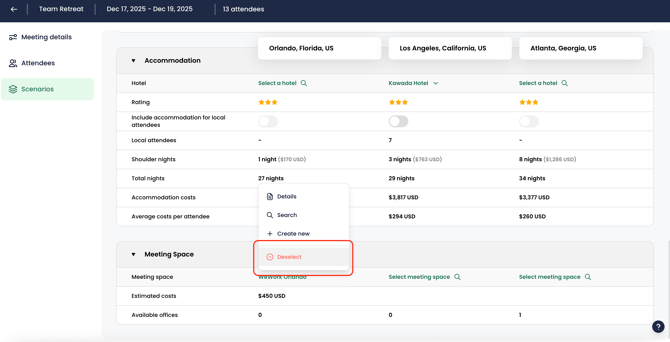
💡 You can remove or deselect a meeting space from the Meeting Space section on the Scenarios screen.
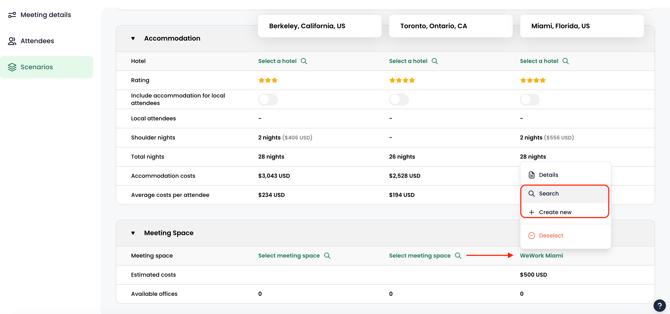
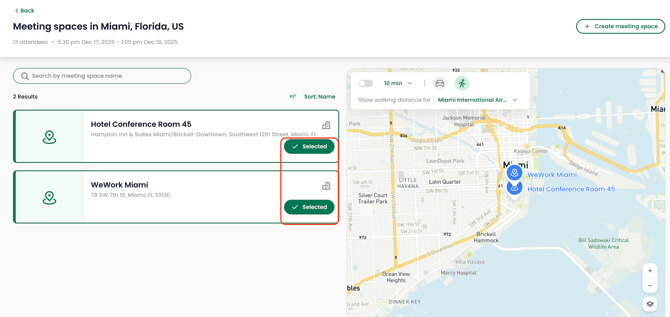
💡 Need to host sessions in different venues? Simply add multiple meeting spaces to your event — perfect for meetings that span various locations.
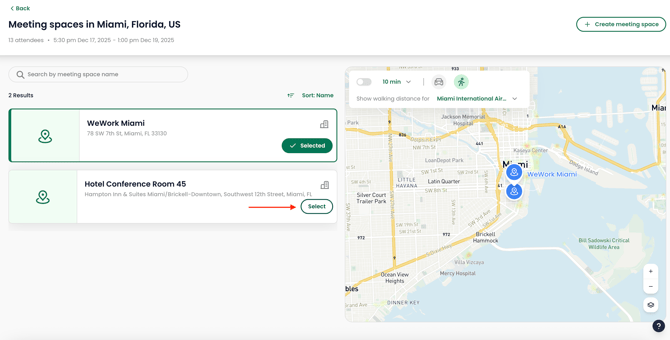
📍 Your offices for that city will be listed in the meeting spaces tab.
Edit a meeting space
Follow these steps to modify the details associated to a meeting space:
Delete a meeting space
Follow these steps to permanently delete a meeting space: