
🚨 Flight data in TROOP is for research and planning purposes. Flights cannot be booked directly through the platform.
This article explains how to view, filter, and modify flight options in TROOP.
Where to view flight information
Timeline
Go to Timeline to view all attendee flights in one visual timeline, with arrivals and departures clearly separated.
➡️ Learn more about flight timeline
Logistics
Go to Logistics for a complete overview of flight needs, who is booking, and current booking statuses.
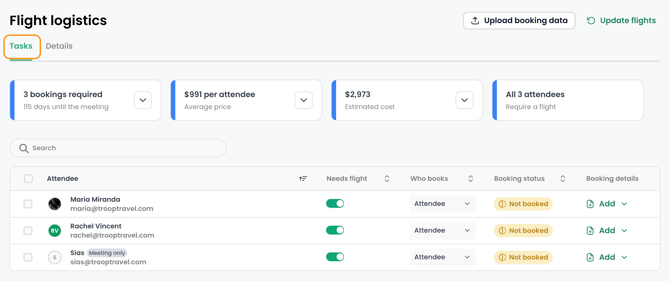
Use Logistics to review more detailed flight information by attendee.
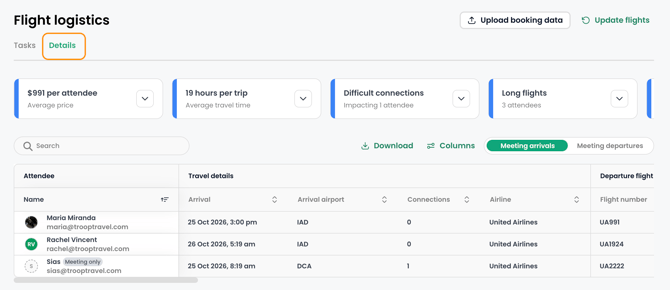
➡️ Learn more about flight logistics
Flight selection explained
TROOP’s flight algorithm recommends the best flights by analyzing duration, cost, and environmental impact. It uses a model to predict flight satisfaction based on your preferences.
-
In-policy: Flights that match your travel policy are prioritized. Out-of-policy flights are clearly marked.
-
Feasible: Flights must align with your meeting’s start and end times, including any buffer time. The default buffer time is 3 hours.
📍 Outbound and return flights are paired together in TROOP, so they cannot be selected separately.
Finding the best flights (filters and modifications)
How to change flights?
Flight filters
Use the following filters to refine your search:
- Departure/return dates: Select which dates TROOP evaluates for flights.
- Price: Define the minimum and maximum round-trip cost per person.
- Stops: Choose the preferred number of layovers.
- Carriers: Choose preferred airline alliances or specify preferred airlines for flight selection.
- Carbon emissions: Set a maximum CO₂ emissions limit per traveler.
- Cabin class: Select your preferred travel class, such as Economy or Business.
- Meeting policies: Show or hide flights that do not match meeting times or travel policies.
- Departure and arrival times: Filter by preferred flight times.
- Flight duration: Set a maximum round-trip travel time, including layovers.
📍 All flight data is provided by Sabre.